- How we took an Ubuntu server from 242 to 863 Mbit/s on a single connection between Canada and Europe
- Windows 10 Mobile build 14393.448 rolling out to the public
- Dirty COW (CVE-2016-5195)
- PhotoMath Brings Its Awesome Math Equation Solving App To Android
- Swiss Watch Makers Announce An Activity Tracking System Designed To Hide Inside Fancy Watches
How we took an Ubuntu server from 242 to 863 Mbit/s on a single connection between Canada and Europe
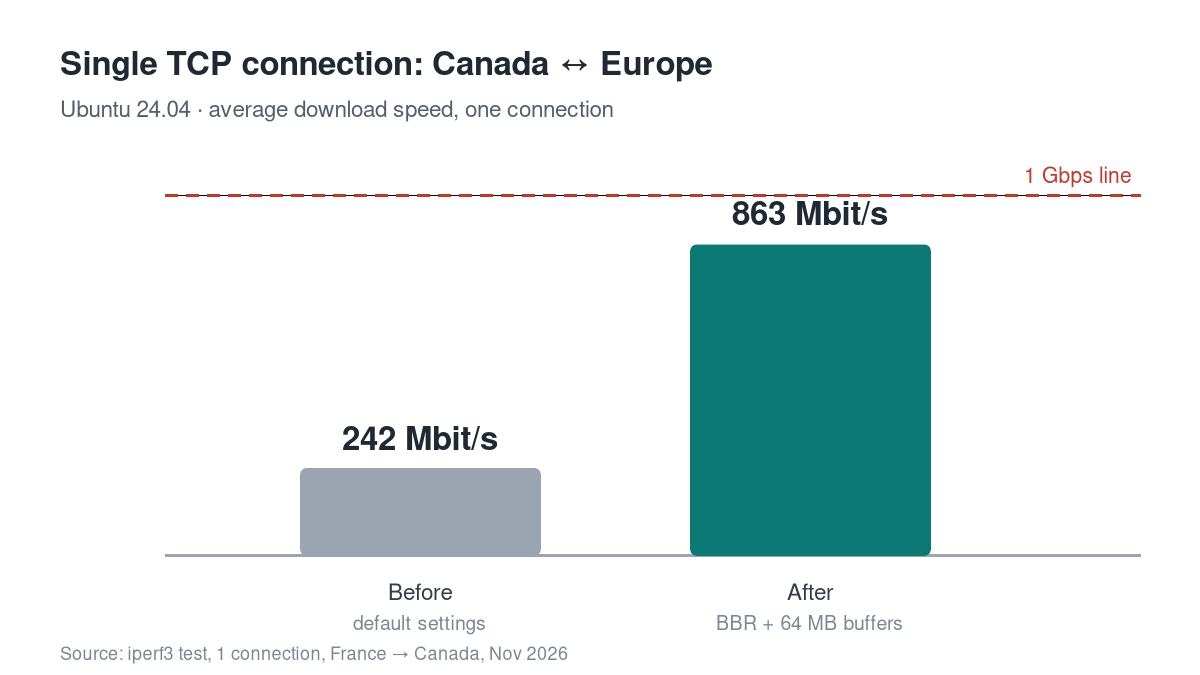
Two Linux kernel settings, with no hardware upgrade and no support ticket, took a single TCP connection from Europe to a server in Canada from 242 to 863 Mbit/s.
Below are all the Ubuntu commands and an explanation of why they work.
The problem
A dedicated server at OVHcloud (Beauharnois, Canada) running Ubuntu 24.04 comes with 1 Gbps of inbound and outbound bandwidth. Yet speedtest-cli showed only 46–135 Mbit/s download and 43–118 Mbit/s upload across seven consecutive runs.
The first instinct was to open a ticket with the provider. Measuring properly first showed the network was fine: the limit came from the server’s default TCP settings.
Step 1: Measure properly
speedtest-cli (the Python version) is not reliable at speeds close to 1 Gbps, and it picks third-party servers that are often far away. Three tools give a real picture. Install them:
sudo apt install -y iperf3 mtr-tiny ethtool1. Network card link speed. It should show 1000Mb/s and Full. If it shows 100Mb/s, the problem is the hardware or the switch, and that is worth a ticket. Use your own interface name (find it with ip a).
sudo ethtool enp4s0 | grep -E "Speed|Duplex"2. iperf3 to a server on the same provider. OVHcloud runs public iperf3 servers, e.g. bhs.proof.ovh.ca (Canada) and proof.ovh.net (France). -P 8 opens 8 parallel connections, -R measures download instead of upload, and -4 forces IPv4.
iperf3 -c bhs.proof.ovh.ca -P 8 -t 30
iperf3 -c bhs.proof.ovh.ca -P 8 -t 30 -R
iperf3 -4 -c proof.ovh.net -P 8 -t 20 -R
3. A single connection. This shows what a plain download or an scp will get. It is the most important test over long distances.
iperf3 -4 -c proof.ovh.net -t 20 -R4. Packet loss along the path.
mtr -rwc 100 bhs.proof.ovh.caIf you get Connection refused, the iperf3 server is busy with another user. Try again in a few seconds.
What the measurements showed
With many parallel connections the server already reached 800–930 Mbit/s. A single connection to Europe stayed at 242 Mbit/s, and that was the real problem. Since the network delivered a full 1 Gbps, a ticket with the provider would have achieved nothing. The fix was inside the server itself.
| Test | Result | Conclusion |
|---|---|---|
| speedtest-cli, 7 runs | 46–135 Mbit/s download | Misleading |
| ethtool | 1000 Mb/s, full duplex | The NIC is fine |
| iperf3 Canada, 8 connections, upload | 812 Mbit/s | Fine |
| iperf3 Canada, 8 connections, download | 926 Mbit/s | Practically the maximum |
| mtr to Canada | 0% loss, ~1 ms | Clean path |
| iperf3 France, 8 connections, download | 804 Mbit/s | Fine even across the Atlantic |
| iperf3 France, 1 connection, download | 242 Mbit/s | This was the bottleneck |
Why distance kills single-connection speed
A TCP connection cannot have more data in flight than its window allows, and then it must wait for an acknowledgement from the other end. So the maximum speed of one connection is roughly:
throughput ≤ TCP windowRTT
RTT is the round-trip time. Inside the same datacenter it is ~1 ms, so a small window is enough. From Canada to Europe it is typically 80–100 ms, roughly 100 times more.
For 1 Gbps at ~90 ms you need a window of about 11 MB:
TCP window = 1,000 Mbit/s × 0.09 s ≈ 90 Mbit ≈ 11 MB
Ubuntu 24.04 ships with a 6 MB maximum receive buffer, and part of it goes to kernel overhead. So a plain download gets stuck at a few hundred Mbit/s, no matter how fast the line is.
The second obstacle is the congestion control algorithm. The default, CUBIC, cuts speed sharply on every lost packet and recovers slowly when RTT is high. Google’s BBR estimates the available bandwidth instead and does not overreact to isolated losses.
Step 2: Enable BBR
BBR is already built into the Ubuntu kernel. One settings file is enough, and it persists across reboots:
printf "net.core.default_qdisc=fq\nnet.ipv4.tcp_congestion_control=bbr\n" | sudo tee /etc/sysctl.d/99-bbr.conf
sudo sysctl --system
Check that it is active (it should print bbr):
sysctl net.ipv4.tcp_congestion_controlIn the output of sysctl --system you may first see default_qdisc = fq_codel, from Ubuntu’s own 10-bufferbloat.conf. That is fine: 99-bbr.conf loads later and wins.
BBR affects what the server sends, i.e. downloads that others make from it, and it applies only to new connections.
Step 3: Larger TCP buffers
This was the change that made the difference. We raise the maximum receive and send buffers from 6 MB to 64 MB, so the TCP window can grow as large as long distances require:
printf "net.core.rmem_max=67108864\nnet.core.wmem_max=67108864\nnet.ipv4.tcp_rmem=4096 131072 67108864\nnet.ipv4.tcp_wmem=4096 65536 67108864\n" | sudo tee /etc/sysctl.d/99-tcp-buffers.conf
sudo sysctl --system
The three numbers in tcp_rmem and tcp_wmem are the minimum, default and maximum size in bytes. The kernel grows a buffer only when needed, so short-distance connections use no extra memory. On a server with little RAM and many simultaneous long-distance connections, consider a lower maximum, e.g. 32 MB.
Result with the same test (iperf3 -4 -c proof.ovh.net -t 20 -R, one connection, France → Canada):
| Single connection | Before | After |
|---|---|---|
| Average speed | 242 Mbit/s | 863 Mbit/s |
| Typical per-second speed | 200–320 Mbit/s | 840–1,010 Mbit/s |
| Data in 20 s | 578 MB | 2.01 GB |
Almost 3.6 times the speed per connection, and practically the full 1 Gbps on a single stream. In this test our server was the receiver, so the larger receive buffer is what made the difference.
Rolling back, and what to watch for
The changes are two files and can be undone in a second:
sudo rm /etc/sysctl.d/99-bbr.conf /etc/sysctl.d/99-tcp-buffers.conf
sudo sysctl --system- The other end matters too. Speed is set by the slower connection and by the settings on both machines. If you move data between two Linux servers, put the same files on both.
- Don’t trust speedtest-cli at gigabit speeds. It showed 46–135 Mbit/s on a line that delivers 900+. Use iperf3 against your provider’s servers.
- Before opening a ticket, test with many connections and with one. If many connections reach the limit and one doesn’t, the problem is your TCP settings, not the provider.
- For even more speed, use tools that transfer in parallel, such as rclone and aria2c.
Tested on Ubuntu 24.04 LTS (kernel 6.8), on a 1 Gbps dedicated server at OVHcloud Beauharnois. The same commands work on Debian and other modern Linux distributions.